Fusion effect for DaVinci Resolve
Speed ramps by drawing a curve, no keyframes
Timeline time keeps running evenly; the curve decides which frame you see at each moment. Steep is fast, flat is frozen, and falling plays in reverse. All from the Edit page Inspector.
DaVinci Resolve Studio 21 on Windows · The free version and macOS are untested
- Instant download after payment
- Unlimited personal and commercial use
- 13 curves and six slots for your own
No refunds — Terms of purchase
Thirteen curves
One curve for each intention
Pick one from the drop-down, press "Apply curve" and it is in. From there you shape it: drag the points, and click on the line to add more.
- 1
Classic
Slow, fast, slow.
- 2
Reverse classic
Fast, slow, fast.
- 3
Speed up
Starts slow and speeds up.
- 4
Slow down
Starts fast and slows down.
- 5
One hit
One burst in the middle.
- 6
Two hits
Two bursts.
- 7
Three hits
Three bursts.
- 8
There and back
Plays forward and returns to the start.
- 9
Back at the end
Plays forward and rewinds at the end.
- 10
Back at the start
Rewinds at the start, then plays forward.
- 11
Rewind
Rewinds a stretch in the middle.
- 12
Pause
Freezes in the middle.
- 13
Linear
Normal speed, to start from scratch.
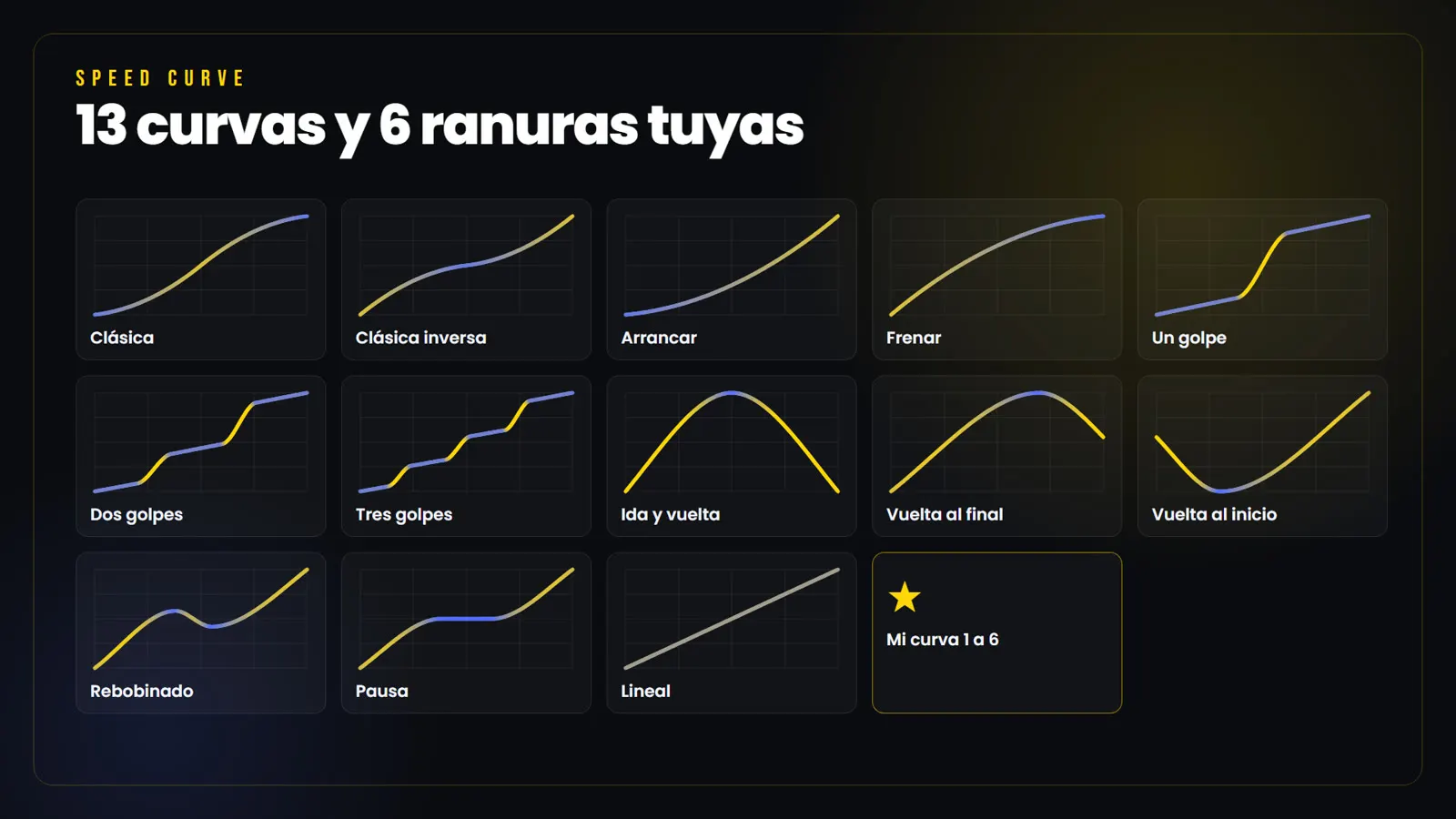
What you get
Everything inside
- The Speed Curve effect ready to install
- All 13 curves, plus six slots to save your own
- Automatic installer for Windows; the macOS one is included but untested
- A bilingual .drfx version for double-click installation
- Step-by-step tutorial in English and Spanish
- An uninstaller that removes only this effect and leaves the others alone
How it works
From dragging the effect to a finished ramp
-
Drag the effect
Edit page, Effects panel, "ResolvePacks" category. Drop Speed Curve onto the clip and it arrives with the Classic curve already set.
-
Pick the curve
In the Inspector, Effects tab. Choose one of the thirteen under "Choose curve" and press "Apply curve". The button is there so loading a preset never wipes the curve you already shaped.
-
Shape it by hand
Drag the points to move the ramp. Click on the line and a new point appears, without the curve changing shape.
-
Export at quality
While you edit, leave Mode on "Edit", which plays smoothly. Before exporting, switch it to "Smooth" or "Best".
Compatibility
Check this before you buy
- Tested on
- DaVinci Resolve Studio 21.0.0.48, on Windows. That is the only combination I have been able to verify
- Free version
- Untested. I do not have the free version installed, so I cannot guarantee it works there. If you use it and want to be sure before paying, write to me
- macOS
- The installer is included, but it has not been tested on a Mac and I cannot guarantee it works
- Clip duration
- Unchanged. The curve redistributes the frames of the trim you already have on the timeline
- Footage
- It only uses frames inside the trim. Cut the clip longer than you think you need
- Audio
- Untouched. The effect only works on the picture
Effect questions
What you should know
Does the clip get longer or shorter?
No, and this is the first thing to understand. The clip keeps exactly the duration it has on the timeline: what the curve does is redistribute the frames of that trim. If you want a stretch to run very fast without running out of footage, cut the clip longer before applying the effect.
Does it work on the free version of DaVinci Resolve?
I do not know, and I would rather tell you before you pay. I only have the Studio version, so I have not been able to test it on the free one. If you use it and you are interested, write to me before buying and we will sort it out.
Do I have to set retime keyframes?
None. There is no retime editor to open, no retime points to create and no trip to the Fusion page. The ramp is the shape of the curve you draw in the Inspector.
Can I sync the ramp to music?
Yes, and it is the biggest time saver. Put markers on the beats, leave the playhead over the clip and press "Markers to points": one point appears on the curve per marker, without changing its shape, ready for you to pull up or down.
Can I save my own curves?
Yes, there are six slots. Shape the curve how you like it, pick a "My curve" slot and press "Save to My curve". You can then recall it in any other project from the same drop-down.
What are the three quality modes for?
"Edit" shows the nearest frame: it is the lightest and the one to edit with. "Smooth" blends frames in the slow stretches, at almost no cost. "Best" invents the in-between frames with optical flow: it is the smoothest and the slowest to compute, so leave it for export.
What is the difference between "Reverse" and "Flip curve"?
"Reverse" plays the clip backwards along the same curve. "Flip curve" keeps the clip playing forward but flips the ramp: what was slow at the start becomes slow at the end, so Speed up turns into Slow down. Press it again and it goes back.
Does the sound speed up too?
No. The effect only works on the picture; the clip audio plays exactly as before.
Can I use it in client work?
Yes, unlimited personal and commercial use. The only thing you cannot do is resell or redistribute the effect file itself.
Get the effect
Secure payment, automatic invoice and an instant download in your inbox.