Its own window, outside Resolve
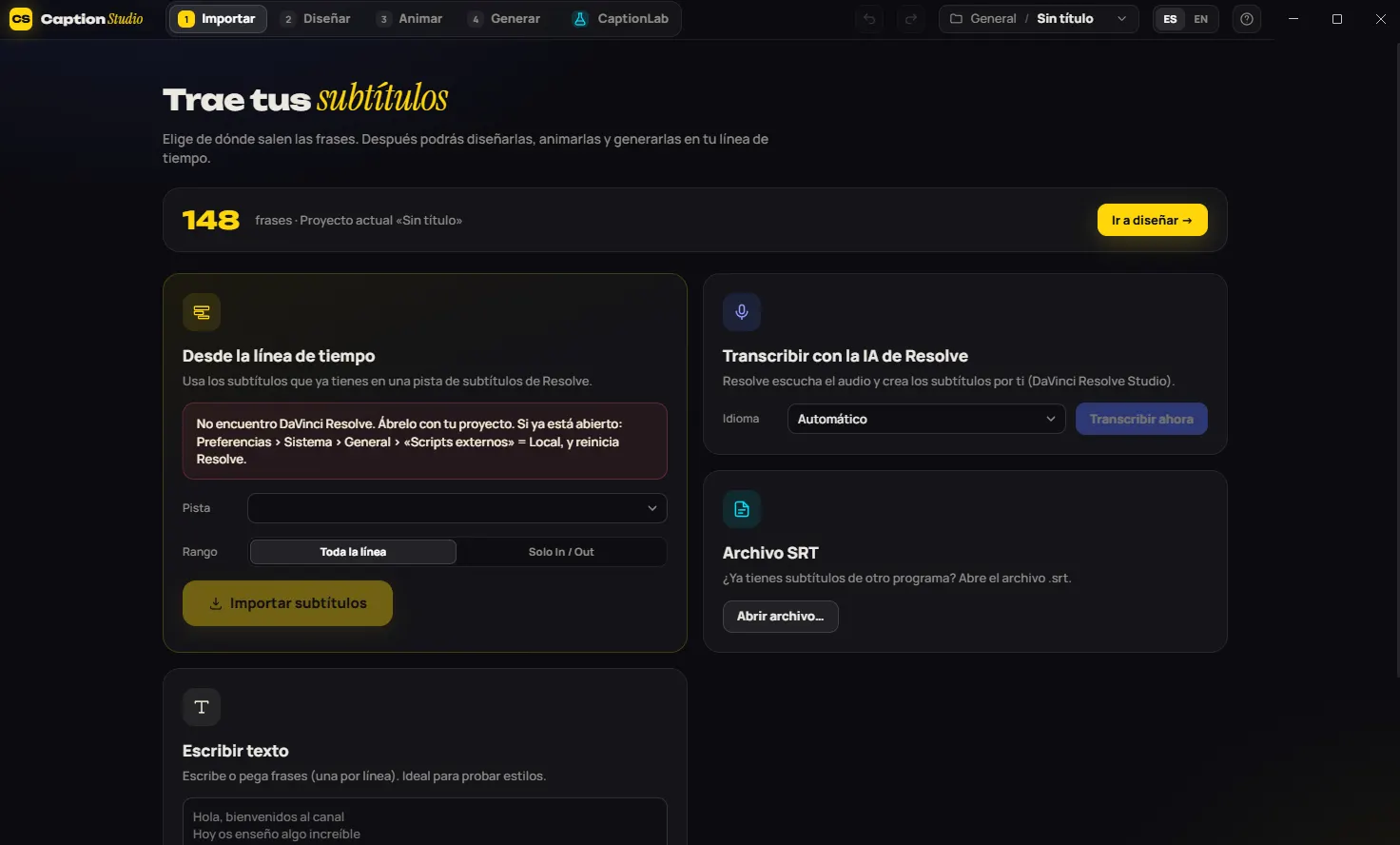
It opens like any Windows program, with its own title bar and buttons. This is where you choose where the phrases come from: a subtitle track, Resolve’s AI transcription, an SRT file or text you type. The red notice in the screenshot is the app itself saying Resolve is not open yet; once it is, the bottom left turns green with your project name, its resolution and its frame rate.
A live preview over your own frame
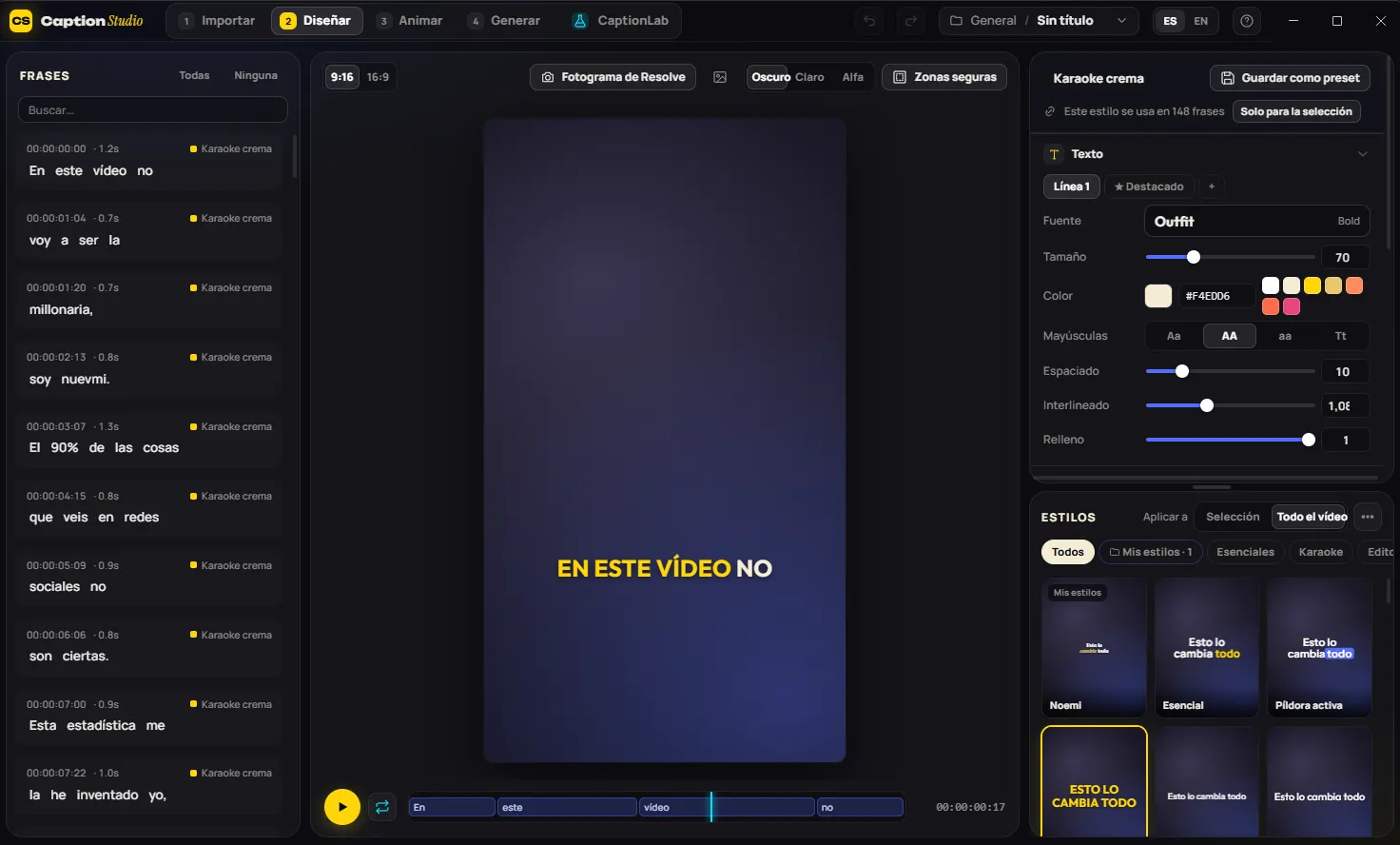
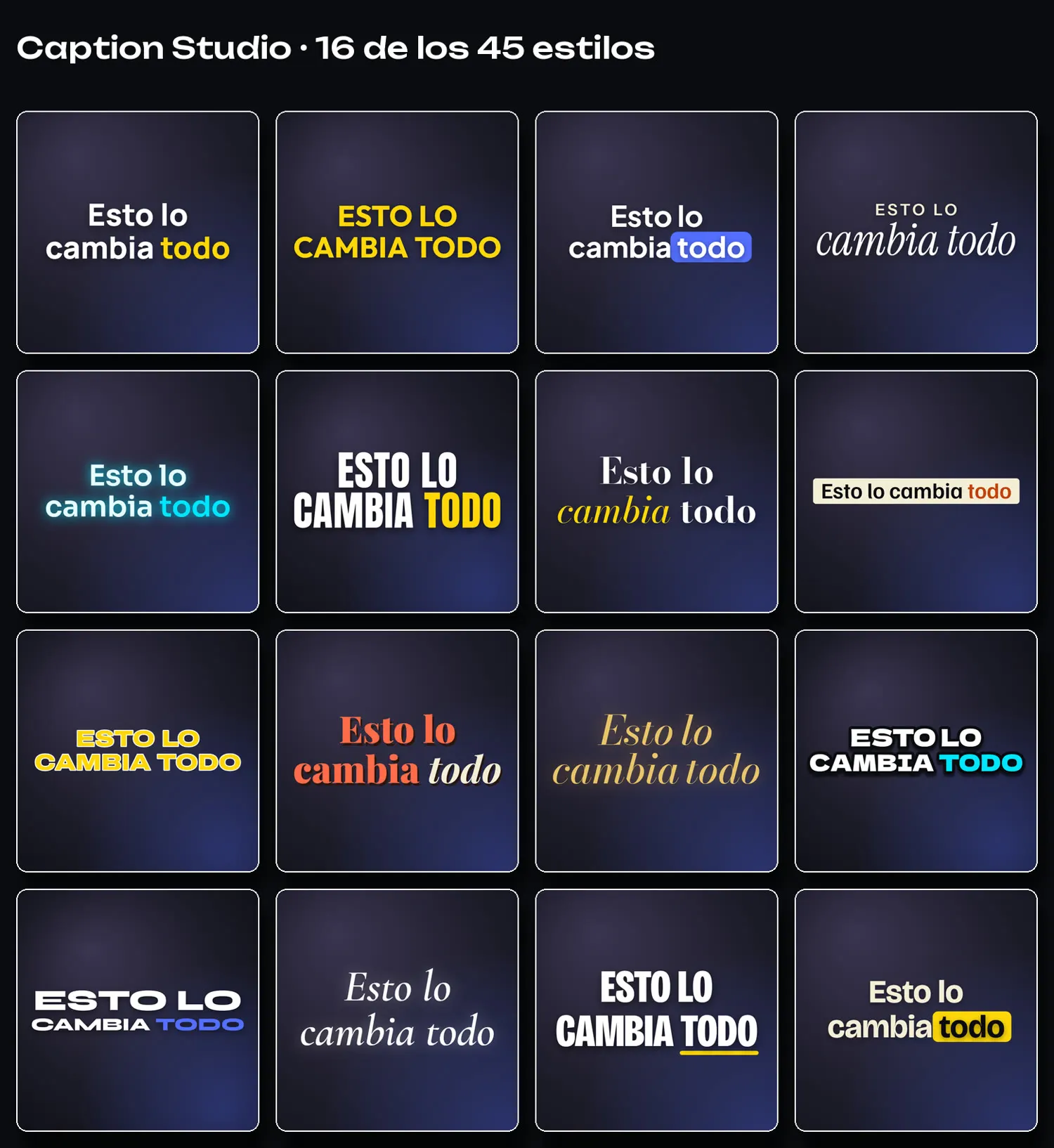
Phrases on the left, your video in the middle with the safe zones for TikTok, Reels and Shorts, and every setting on the right: font, size, colour, caps, tracking, line height and padding. Underneath, the 45 styles. Every change shows up immediately, not after you generate.
All 26 animations, moving
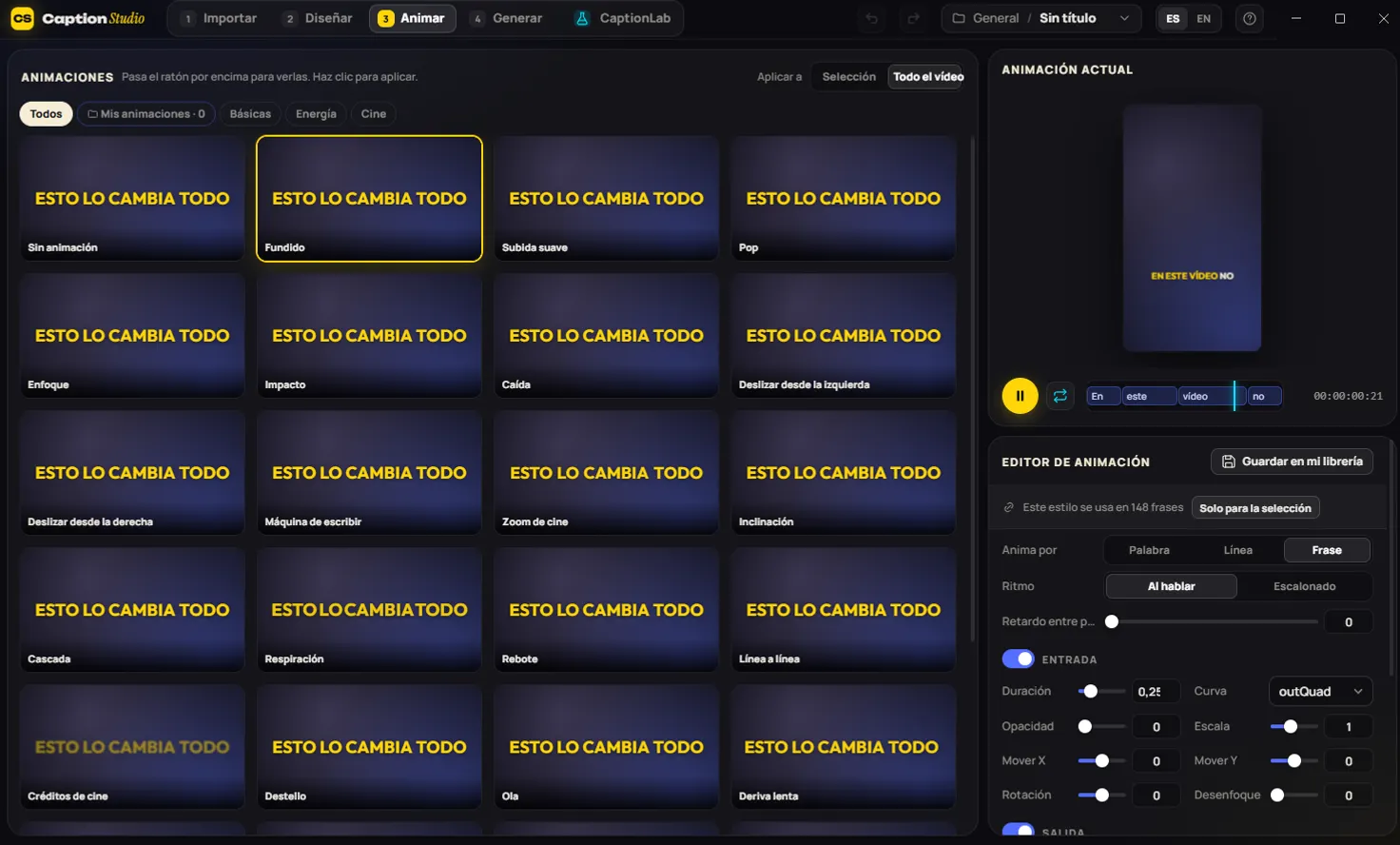
Hover over one and it plays inside its own card. You choose whether it animates by word, line or phrase, whether the timing follows the voice or a fixed stagger, and you fine-tune duration, curve, opacity, scale, offset, rotation and blur for both the entrance and the exit.
Real screenshots of the app, version 1.0.0 on Windows 11. The screenshots show the Spanish interface.